How to Build a No-Code App in Google AI Studio (Step-by-Step)
TL;DR — What You'll Learn
- You can build a working app in Google AI Studio in under a minute — just by describing what you want in plain English.
- The real skill is iterating: making one change at a time, testing after every change, and knowing when to bring in ChatGPT for help.
- Start simple and useful. Build something you'll actually use — the goal is learning how to prompt and troubleshoot, not building Facebook overnight.
Google AI Studio lets you build apps by describing your idea to Gemini. No coding. No technical setup. You write what you want in plain English, click Build, and watch it create a working app in under a minute.
I walked through building a data visualization app from scratch — a tool that takes a data point and turns it into a minimalist, dark-mode circular graph. Here's the full process, including the parts where things broke.
Step 1: Describe Your App
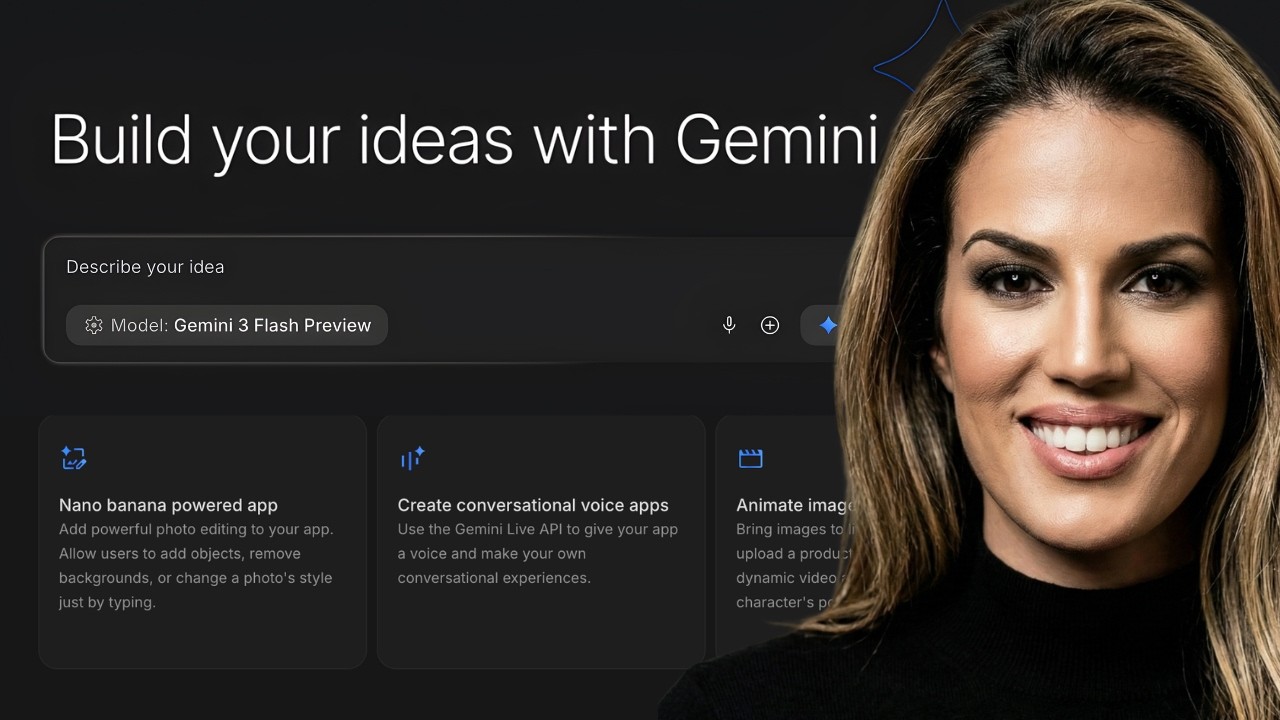
Go to aistudio.google.com/apps. You'll see a prompt: "Build your ideas with Gemini. Describe your idea."
I wrote: Create an app where I can input text on a singular data point, and the app based on that data point will create a visualization of that data in the style of a minimalist, dark mode circular graph.
Clicked Build. Less than a minute later, I had a working app called "Minimalist Natural Language Data Visualizer."
Step 2: Test with Real Data Before Changing Anything
This is critical. Don't start requesting changes after one test. Input three or four different data points to see how the app handles different scenarios.
I tested with: "Only 1% of users on LinkedIn create content weekly." The output was solid. Then I tested with "0.004% of business owners go live consistently" — and that's when I started seeing where the logic needed work.
Step 3: One Change at a Time
This is the single most important lesson from the entire build. When you ask for changes, ask for one thing at a time.
My first change: remove the header text that appeared above the percentage number. I described exactly what I wanted removed and where it was. Gemini made the change, and the app refreshed automatically.
Then I asked to limit the description text to three lines max and make the font slightly bigger. One request. Test. Next request. Test.
Step 4: When Gemini Can't Fix It, Bring in ChatGPT
The description text under the percentage kept breaking — missing words, incomplete sentences. Gemini couldn't solve the logic issue after multiple attempts.
Here's the workaround: Go to Google AI Studio, click Code, copy the relevant file (like Gemini Service TS), paste it into ChatGPT along with a screenshot of the problem, and ask it to rewrite the entire file from the top.
Key Tip
Always ask ChatGPT to rewrite the full file so you can copy and paste directly. If it tells you "change line 12 to this," and you're not a coder, that's useless. Say: "I'm not a coder. Rewrite the file from the top."
The Restore button is your safety net. If the code from ChatGPT breaks things, you can always roll back.
Step 5: Add Features Once the Core Works
Once the basic visualization was solid, I layered on features:
- Color theme picker — Google AI Studio even suggests AI features you can add. I used its suggestion to add color themes.
- Logo upload — Upload a brand logo and the app identifies the main colors to use in the visualization. I broke this into two phases: first colors, then fonts.
- Image download — Save the visualization as an image file.
- Pulsating save button — When the image is produced, the save button glows and pulses so users know what to do next.
Step 6: Deploy and Share
Google AI Studio has a deploy option where you can publish your app and get a shareable link. You can also use advanced sharing permissions to limit access to specific people via email.
The Honest Truth About Building Apps
This is not a five-minute process. The initial app takes under a minute. But refining it — fixing logic, testing edge cases, going back and forth between Gemini and ChatGPT — takes real time.
But here's the thing: within an hour or two, a non-coder can build a custom tool that does exactly what they need. And more importantly, you're learning the skills — prompting, iterating, troubleshooting — that apply to every AI tool you'll ever use.
Pitfalls to Avoid
Asking for multiple changes at once. This is the number one mistake. When you stack four requests and the app breaks, you have no idea which one caused it. One change, one test, repeat.
Not testing enough before making changes. Test with at least three or four different inputs before you start editing. You need to see the pattern of behavior, not just one output.
Trying to build something complex right away. Don't try to build a multi-feature platform on your first attempt. Build a single-purpose tool. You'll learn faster and actually finish it.
Forgetting the Restore button exists. When code from ChatGPT or a bad prompt breaks everything, don't panic. The Restore button takes you back to any previous working state.
Building something you won't use. If after two hours you think "that was fun but I'll never use it," you picked the wrong project. Build something that solves a real problem in your business.
Your Action Plan — Build Your First App Today
Go to aistudio.google.com/apps. Sign in with your Google account. No payment required to start.
Pick one simple, useful tool to build. A calculator, a data visualizer, a content formatter, a client intake form — something with one clear purpose that you'll actually use.
Write a specific prompt describing what you want. Include the input, the output, and the visual style. Be concrete. Click Build.
Test with 3–4 different inputs before changing anything. See how the app handles variation. Note what works and what doesn't.
Iterate one change at a time. Test after every change. If something breaks, use Restore. If Gemini can't fix it, copy the code into ChatGPT and ask for a full rewrite of the file.
Frequently Asked Questions
Conclusion
The barrier to building custom tools for your business is gone. Google AI Studio lets anyone — regardless of technical skill — describe an idea and have a working app in under a minute. The real skill isn't coding. It's knowing how to prompt, iterate, test, and troubleshoot.
Start with something simple. Make it useful. Have fun with it. And when you go to build the big thing, you'll already know how.
Learn AI Skills for Your Business
No-code, no jargon. Just practical AI tools and strategies for business owners who want to stay ahead.
Explore AI Skills